We blog about Google Chrome extensions that can be used to help us when building Change Set: Salesforce Change Set Helper and Boostr for Salesforce, both of them are free.
Here is another free Google Chrome extension that can make our life easier when adding Change Set Components, it called "Quick ChangeSet & Navigator".
This extension help to add components into Change Set without having to load each page as well as navigating Component Type and paging in Salesforce.
Here is the simple step by step:
1. Create a new Change Set or open existing Change Set haven't upload
2. Click Add button, make sure you are in "Add to Change Set" page, otherwise, the tool will not work.
3. Click "Quick ChangeSet" icon from Google Chrome extension bar
4. Select the component by change filter and paging, this is pretty fast as the page not keep reload
Type: Google Chrome extension
Paid/Free: Free
Publisher: sanjaykeynotes.blogspot.com
Video: https://www.youtube.com/watch?v=71vyCtuFn-I
Installation: https://chrome.google.com/webstore/detail/quick-changeset-navigator/jhoddpnaknifeinaojmahfmbgephkodj
Version: 1.0.2
Blog last updated: 2 Aug 2017
Wednesday, August 2, 2017
Sunday, July 30, 2017
Salesforce: Printable View from a Record in Lightning and Classic
So you have migrated to Lightning, then you realize that your users complain where is the "Printable View" after a record open a record, such as Account, Opportunity, or etc. Yes, as per Summer '17 release, Salesforce Lightning does not have "Printable View" function yet.
To fill this gap, HyTech Pro created a free app and make available in AppExchange. This app is compatible with Lighting and Classic.
The benefit of using this app in Classic is the ability to change Salesforce's logo with your own company/organization logo, but you need to add a custom button (installed with the package) to the page layout.
In Lightning, you need to add "Printable View" action to "Salesforce1 & Lightning Actions" in object Page Layout. As you see from the screenshot below, the action will work even you are not opening the record details tab.
Type: Managed Package; AppExchange
Paid/Free: free
Publisher: HyTechPro
Installation: https://appexchange.salesforce.com/listingDetail?listingId=a0N3A00000EFom3UAD
Version: 1.3
Blog last update: 30 July 2017
To fill this gap, HyTech Pro created a free app and make available in AppExchange. This app is compatible with Lighting and Classic.
The benefit of using this app in Classic is the ability to change Salesforce's logo with your own company/organization logo, but you need to add a custom button (installed with the package) to the page layout.
In Lightning, you need to add "Printable View" action to "Salesforce1 & Lightning Actions" in object Page Layout. As you see from the screenshot below, the action will work even you are not opening the record details tab.
Type: Managed Package; AppExchange
Paid/Free: free
Publisher: HyTechPro
Installation: https://appexchange.salesforce.com/listingDetail?listingId=a0N3A00000EFom3UAD
Version: 1.3
Blog last update: 30 July 2017
Sunday, May 7, 2017
Salesforce Change Set Helper
Salesforce Change Set Helper is a Chrome extension to improve the usability of Salesforce Change Sets. It allow Change Set with additional information, such as last modified date, last modified by, etc. It also allows comparison the component with other org.
Features include:
- Includes the last modified date and user and api name for each item.
- Automatically ordered by most recent modified first
- Filter/Search/Order by any field.
- Sets all pages to show the 1000 rows. If more than 1000 items in a page, asks if you want to continue to retrieve more.
- View and Search on items in the change set. This allows you to see the whole change set and search to make removing much easier.
- Compare to another org (uses OAuth2.0 -- no username or password information is seen or stored by this extension).
- Shows the last modified date and user for the compared org as well.
- Click the file name to see a diff of the metadata file between orgs.
Note that there is a delay when loading large pages and you may need to disable other chrome extensions that alter the change set page.
To use the Salesforce Change Set Helper, edit your Outbound Change Set in Salesforce. The additional information and functionality will automatically be added to the page.
This is standard Salesforce Change Set when you want to add component:
When Change Set Helper added and enabled
You also can compare the component with other org.
Type: Google Chrome extension
Paid/Free: Free
Publisher: brainfield.initiative@gmail.com
Installation: https://chrome.google.com/webstore/detail/salesforce-change-set-hel/gdjfanbphogooppaefebaaoohdcigpoi
Version: 2.0.2
Blog last updated: 7 May 2017
Features include:
- Includes the last modified date and user and api name for each item.
- Automatically ordered by most recent modified first
- Filter/Search/Order by any field.
- Sets all pages to show the 1000 rows. If more than 1000 items in a page, asks if you want to continue to retrieve more.
- View and Search on items in the change set. This allows you to see the whole change set and search to make removing much easier.
- Compare to another org (uses OAuth2.0 -- no username or password information is seen or stored by this extension).
- Shows the last modified date and user for the compared org as well.
- Click the file name to see a diff of the metadata file between orgs.
Note that there is a delay when loading large pages and you may need to disable other chrome extensions that alter the change set page.
To use the Salesforce Change Set Helper, edit your Outbound Change Set in Salesforce. The additional information and functionality will automatically be added to the page.
This is standard Salesforce Change Set when you want to add component:
When Change Set Helper added and enabled
You also can compare the component with other org.
Type: Google Chrome extension
Paid/Free: Free
Publisher: brainfield.initiative@gmail.com
Installation: https://chrome.google.com/webstore/detail/salesforce-change-set-hel/gdjfanbphogooppaefebaaoohdcigpoi
Version: 2.0.2
Blog last updated: 7 May 2017
Fake Data
This Google Chrome extension is not specific for Salesforce usage only, but it will work for both Classic and Lightning. This will help you that need to keep entering fake data for some testing.
Fill form input fields with fake random data.
- Has an auto-learn feature for unrecognized fields.
- Power users are able to define their own custom generators using JS code.
Keyboard + Mouse Shortcut:
OS X: Cmd + Double click
Windows / Linux: Alt + Double click
If the field is not recognized:
If a field is not recognized automatically, then right-click on it -> go to Fake Data -> select the appropriate generator that you want to be used with that field in the future.
Next time you double click on the same field it will be recognized automatically.
Type: Google Chrome extension
Paid/Free: Free
Publisher: Hater Apps
Installation: https://chrome.google.com/webstore/detail/fake-data/gchcfdihakkhjgfmokemfeembfokkajj
Version: 1.6.0
Blog last update: 7 May 2017
Fill form input fields with fake random data.
- Fill form input fields on the fly with fake random data.
- Zero configuration needed out of the box, just cmd+double click / alt+double click on each input you want to fill.- Has an auto-learn feature for unrecognized fields.
- Power users are able to define their own custom generators using JS code.
Keyboard + Mouse Shortcut:
OS X: Cmd + Double click
Windows / Linux: Alt + Double click
If the field is not recognized:
If a field is not recognized automatically, then right-click on it -> go to Fake Data -> select the appropriate generator that you want to be used with that field in the future.
Next time you double click on the same field it will be recognized automatically.
Type: Google Chrome extension
Paid/Free: Free
Publisher: Hater Apps
Installation: https://chrome.google.com/webstore/detail/fake-data/gchcfdihakkhjgfmokemfeembfokkajj
Version: 1.6.0
Blog last update: 7 May 2017
Tuesday, April 11, 2017
SuperTools from WalkMe
SuperTools from WalkMe is Google Extension add-on, so you do not need to install anything in your Salesforce org., or ask your admin to enable it for you.
At this moment, there are 2 main features come from SuperTools offered by WalkMe for free.
1. SuperEdit
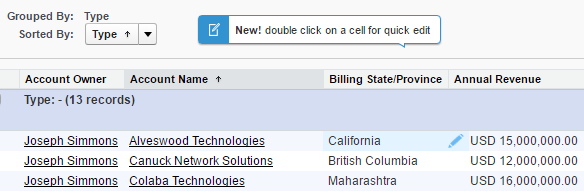
Would it be cool when you can edit data directly in Salesforce report? With this tool, you can do this with ease. It works for Tabular and Summary report in Classic. As per standard Salesforce validation, it will only allow user to edit data they have access, otherwise, you will get an error.
Just install the Google Extension from the link in the reference below and you will see the magic.
Notice a pencil icon shown when you hover your mouse over a report open.
2. SuperSearch
Can't be denied that every Salesforce user should have use Search function, it's pretty cool when you can search any data from a single place. But, with SuperSearch from WalkMe, the search experience would be even powerful, let's see.
This is standard Salesforce global search, recent items you opened earlier will be shown in the search result before you click the Search button.
Compare with addition power from SuperSearch, it will search all records as you typing.
Watch the videos from WalkMe SuperTools site for more detail. But, if you don't like, simply delete the extension and nothing left behind in your Salesforce.
Type: Google Chrome extension
Paid/Free: Free
Publisher: WalkMe
Installation: https://chrome.google.com/webstore/detail/walkme-extension/fckonodhlfjlkndmedanenhgdnbopbmh
Version: 1.6.22
Blog last update: 11 Apr 2017
At this moment, there are 2 main features come from SuperTools offered by WalkMe for free.
1. SuperEdit
Would it be cool when you can edit data directly in Salesforce report? With this tool, you can do this with ease. It works for Tabular and Summary report in Classic. As per standard Salesforce validation, it will only allow user to edit data they have access, otherwise, you will get an error.
Just install the Google Extension from the link in the reference below and you will see the magic.
Notice a pencil icon shown when you hover your mouse over a report open.
2. SuperSearch
Can't be denied that every Salesforce user should have use Search function, it's pretty cool when you can search any data from a single place. But, with SuperSearch from WalkMe, the search experience would be even powerful, let's see.
This is standard Salesforce global search, recent items you opened earlier will be shown in the search result before you click the Search button.
Compare with addition power from SuperSearch, it will search all records as you typing.
Watch the videos from WalkMe SuperTools site for more detail. But, if you don't like, simply delete the extension and nothing left behind in your Salesforce.
Type: Google Chrome extension
Paid/Free: Free
Publisher: WalkMe
Installation: https://chrome.google.com/webstore/detail/walkme-extension/fckonodhlfjlkndmedanenhgdnbopbmh
Version: 1.6.22
Blog last update: 11 Apr 2017
Saturday, March 25, 2017
Activity Comments Enabler
By default, we cannot add Activity Comment into related list in Salesforce Classic, user need to click the task or event to see the comment. If you are awesome admin, you think you can create formula field to copy Comment value, but Comment this field is not exist for formula field. Workflow with Field Update to update a custom text field will be the option. As Activity is split into 2 objects: Task and Event, you need to create one custom text field in 'Activity Custom Fields', then 2 workflows and 2 fields update (for each Task and Event).
But, there is a free app available in AppExchange called 'Activity Comments Enabler', you just need to install it and add a field called 'Summary Comment' to the related list.
Activity Comments Enabler gives you a summary of comments in activity history related lists (showing tasks & events) with no clicks at all.
This means your users can save valuable time by not having to click through into every task and event or use long printable views to read comments.
Once installed, this app will copy the first 255 characters of Comments into a custom Summary Comments field on any new or updated Tasks and Events. This custom field can then be displayed on related list page layouts. If the Task Type is 'Email', instead of copy the first 255 characters of Comments, it will show as 'Open Task to View Email'.
Type: Unmanaged Package; AppExchange
Paid/Free: free
Publisher: CRM SuperStars
Installation: https://appexchange.salesforce.com/listingDetail?listingId=a0N30000000qrQMEAY
Version: 1.0.0
Blog last update: 25 March 2017
But, there is a free app available in AppExchange called 'Activity Comments Enabler', you just need to install it and add a field called 'Summary Comment' to the related list.
Activity Comments Enabler gives you a summary of comments in activity history related lists (showing tasks & events) with no clicks at all.
- Provides a short summary of the first 255 characters of comments on the activity record in any activity related list. Use for tasks and events.
- Works in Professional Edition so that all users can see a summary of comments on their activity related lists, including both tasks and events.
- Handles all tasks and events, including those created from integrations and other automation. Will display a summary of comments on all activity history related lists on any object.
- Activity Comments Enabler allow your users to view a summary of comments in any activity related list on any object.
This means your users can save valuable time by not having to click through into every task and event or use long printable views to read comments.
Once installed, this app will copy the first 255 characters of Comments into a custom Summary Comments field on any new or updated Tasks and Events. This custom field can then be displayed on related list page layouts. If the Task Type is 'Email', instead of copy the first 255 characters of Comments, it will show as 'Open Task to View Email'.
Type: Unmanaged Package; AppExchange
Paid/Free: free
Publisher: CRM SuperStars
Installation: https://appexchange.salesforce.com/listingDetail?listingId=a0N30000000qrQMEAY
Version: 1.0.0
Blog last update: 25 March 2017
Subscribe to:
Posts (Atom)