Wednesday, January 5, 2022

Salesforce DevTools

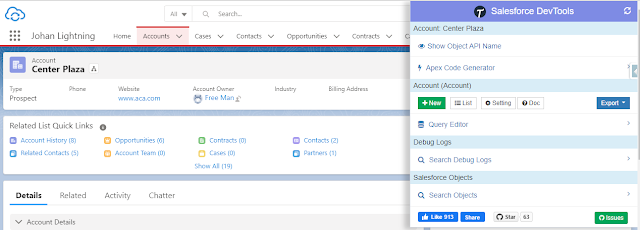
Salesforce DevTools – a powerful Chrome extension for Saleforce.com developers. Although it mentions that the tool is for developers, but Salesforce admin and power users can make use of this tool too for daily productivity.

As per the document here, features from this tool:

  • Quickly access to new record page, list page, and object setting page.
  • Exporting Objects Fields, Page Layout, List View Definition as Excel
  • Generating Salesforce data model (ERDs) as SVG file
  • Fully GUI Query editor for generating SOQL and exporting as Excel
  • Show/Hide object API name on the object detail page with 1-click.
  • All check on profile edit and field permission edit page.
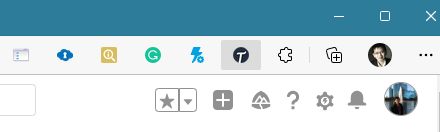
Once this extension is installed from here, you should see a "T" icon shown in the list of your browser extensions.


Note: the extension can be used in the Edge browser too.

If you have not used Salesforce inspector, you should try it, as both tools are complementing each other.

To use the tool, simply click the icon and you will be presented with a list of menus. The tool detects what Salesforce page that you are in, and it will show different menus based on the active Salesforce page opened, if you are not opening a Salesforce page, no menu will be shown.
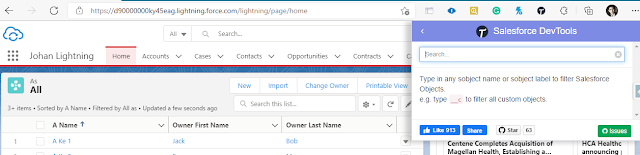
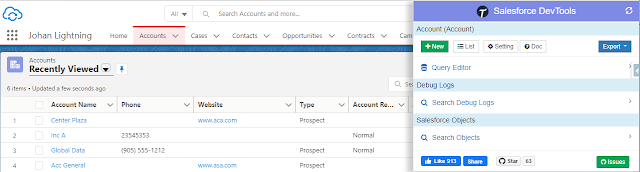
Home Page

Tab / List View (object auto selected)

Record Page (available show/hide API Name)

Search Objects 

This feature is available on all pages, the purpose is to search for an object or multiple objects, and work on it.
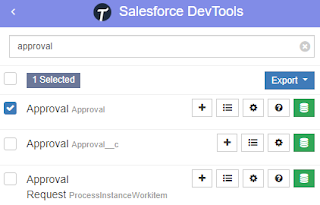

What you can do here?
  • Click + (New) icon to create a new record, even no tab is created for that object, it simply opens a URL such as https://domainname.lightning.force.com/lightning/o/objectname__c/new
  • Click the List icon to open the list view page for the object, it simply opens a URL such as https://domainname.lightning.force.com/lightning/o/objectname__c/list
  • Click the gear (Setting) icon to open the Fields & Relationships page for the object 
  • Click ? (Object Reference) icon to open documentation for the object, only for standard objects.
  • Click the Export button then select items that you want to export, but before that, you need to select an object or multiple objects:
    • Objects Definition
    • Objects Fields Definition
    • ERDs (svg) -- ideally should select a few related objects to see their relationship
    • Page Layouts
    • List Views
  • Click the green (Query Editor) icon to display the query result, or to export the result to an Excel file. The query editor supports field name auto-completion, including after where. You also can use the parent relationship queries syntax here.


Show/Hide Object API name

If you are on a record page, you should see "Show Object API Name" as the first menu, by clicking this, the field API name will be added after the field label name.
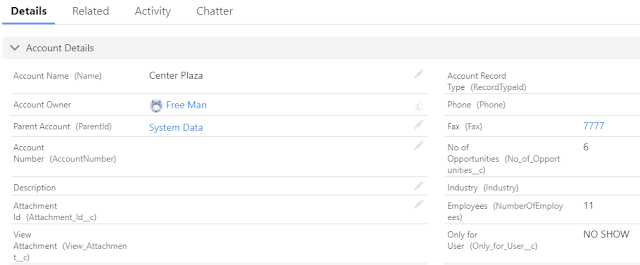

If you do a query from the record page, the query will automatically add WHERE Id = 'xyz', the xyz here is the record Id of the opened record. You can select all fields by clicking the checkbox before "Field Label"


Object Defenition (FULL)

Export Object Defenition (FULL) will export all items below to an Excel file:

  • Object Defenition Detail
  • Fields Definition
  • Fields Level Security by Profile
  • Validation Rules
  • Workflow Rules and Actions
  • Apex Triggers


Export Page Layout will export only page layouts that are only assigned to your profile, not all page layouts in the system. But, it will include:

  • Field Label
  • API Name
  • Data Type
  • Position Column
  • Readonly (in page layout)
  • Required (in page layout)
  • Note
  • Related List with columns


Current version: 3.8.0 - 4 April 2021


Wednesday, December 29, 2021

Salesforce Sandbox Version

Shows your salesforce sandbox version next to your sandbox host, this is very useful when a preview release is available in the sandbox instances.

Tired of having to manually look at what version your sandboxes are?  Well, let a computer do all that tedious work for you! This extension will load an icon and alt text next to your instance name so you can see if the sandbox is a spring/summer/winter instance.

Get it here!

Tuesday, September 7, 2021

Profile and Permission Set Helper (2)

Almost 3 years ago, I blog about an app called Profile and Permission Set Helper from Salesforce Labs. This app helps you to convert existing Profiles permissions in your org to Permission Sets, when I wrote that blog, the app was still at version 1.5.

Fast forward 3 years later, now the app is on version 2.28, in addition to helping you to convert from a profile to a permission set, it also has a new feature called Permission Analyzer, here is the description of the app

Analyze by a permission to view the list of profiles and permission sets that contain it. You can also analyze by user to view a summation of all permissions assigned to a user. View which specific profiles or permission sets contain a permission. Understand your permissions structure with just a few clicks and keep your permission assignments up-to-date.

In my use case, I have a user that suddenly has edit to all accounts, although the user profile doesn't have Modify All on Accounts, so what is the caused?

Using Permission Analyzer, I look up that user then drills into Account object and see how the user gets Modify All permission on Account.


In the above sample, the permission set name is a clear "Modify Acct", so you can guess what is inside the permission set, imagine if that permission is called "View Campaign", at a glance, you will not guess that permission set has anything to do with Account.


However, if you are good with SOQL, you can get almost the same result using query

SELECT Id, SObjectType, Parent.Label, Parent.IsOwnedByProfile
FROM ObjectPermissions
WHERE PermissionsModifyAllRecords = True 
AND (ParentId IN (SELECT PermissionSetId FROM PermissionSetAssignment WHERE Assignee.Name = 'Hello User'))
AND (SobjectType = 'Account')
ORDER BY Parent.IsOwnedByProfile DESC, Parent.Label

Result


Reference:


Saturday, May 30, 2020

CMTD Enhanced Related List

In Summer 19 release, Salesforce introduces Enhanced Related Lists. Enhanced List offers more features compared to the older Basic List or Tile option.

Enhanced Related Lists features:
  • Set the number of records to display in the related list
  • Show list view action bar
  • Refresh button
  • Wrap text in the column
  • Resize and sort columns
  • More than 4 fields on the related list (compare to the Basic List)

Tile

Basic List

Enhanced List


But, to filter related list, you have to click "View All" at the bottom of the related list, then click the Filter icon, from there, you can add quick filters to the related list with Filter icon. Related list quick filters act similarly to list view filters except they aren’t saved, persist only throughout your current session, and can’t be shared.


CMTD Enhanced Related List is a “Custom Metadata Type Driven” custom lightning component that provides enhanced features to display related list records in Lightning App.

The component supports configurable filter, sort, and fields to group relevant records together. It supports List and Tile mode with the Lightning look and feels. Use Badge UI Override to highlight important fields to the user.

Use and configure these components on any child objects and boost your lightning implementation. Configure the Filter, Sort, and Fields on this reusable component on any lookup records to group relevant records in a single page (eg: Open and Closed Cases).

First, you need to install this component from AppExchange, as per the Lightning component requirements, you need to enable my domain.

Below is the 3-step process to start using this component:
1. Create configuration data records in the Custom Metadata Type
2. Drag and drop the component in the App Builder
3. Configure component attributes to suit your design

1. Create configuration data records in the Custom Metadata Type


- From the setup menu, go to Custom Metadata Type 
- Click "Manage Records" on Custom Metadata Type created as part of CMDT installed package.
- Click the New button and enter the info, see sample below:


All the above fields will be shown in the CMDT Lightning component. here is the basic explanation:
- Enhanced Related List Name: imagine this as API field name, so not really use in layout
- Label: this would be header label in the table
- Related List Name: this should match with Related List Name in the component
- Field API Name: this is to match values to retrieve from this field
- Order: from left to right
- Target API Name: add value here will allow the user to click and open the record


2. Drag and drop the component in the App Builder
Edit the lightning page and looks for the "CMDT Enhanced Related List" component under Custom - Managed.


3. Configure component attributes to suit your design
Once the component added, click the component to configure it.


In the sample screenshot above, the component added to the Account lightning page:
- Related List Name: this is the same value configured in the Custom Metadata Type 
- Filter is configured in the component, not in Custom Metadata Type 
- Record sort also configured in the component, not in Custom Metadata Type 


Here is the final result:


Type: Managed Package; AppExchange

Paid/Free: free

Publisher: Salesforce Labs


Version: 2.6.0


Blog last updated: 30 May 2020


Monday, October 29, 2018

Profile and Permission Set Helper

When you have a profile assigned to 1 or 2 users with different extra permission compare to other profile, it is a good chance to merge the profile and create a permission set for that 1 or 2 users.

Profile and Permission Set Helper from Salesforce Labs help admin to easily convert existing Profiles permissions in your org to Permission Sets. Within a few clicks, you can clone all Permissions from a certain Profile to Permission Sets, which are ready to be assigned to new users in no time!

Once the app installed, select Profile and Permission Set Helper app, there will be only 1 tab called Converter, then select the profile that you want to convert into Permission Set.

Notes: this app is only work in Lightning.


The conversion process is very fast, only a few seconds, and it will create a new Permission Set as you named it. The existing profile will still be there and not touch.


Now, you can assign the permission set as per normal to users, and delete the profile when required.


Type: Managed Package; AppExchange

Paid/Free: free

Publisher: Salesforce Labs

Installation: https://appexchange.salesforce.com/appxListingDetail?listingId=a0N3A00000FeF99UAF

Version: 1.5


Blog last updated: 29 October 2018


Wednesday, September 12, 2018

Field Footprint

You probably heard about Field Trip, one of the most famous free app available in AppExchange, this tool able to analyze fields population, this is very useful when you are doing field clean-up or to get data completeness. However, Field Trip has not updated since Jun 2015.

Field Footprint is kind of similar to Field Trip, but with additional features, such as checking record type, field usage in Validation rules, Workflow rules, Workflow Field Updates, and Reports.

On top of that, one thing I notice from this tool compare to Field Trip, when running a Field Trip to analyze an object with 134K of data, Field Trip required 75 minutes, while running Field Footprint analyze to the same of dataset, Field Footprint only need 25 minutes, so the performance is 3x better.

Once complete, you will see the result in the Footprint Detail page, or open Footprint results in a report.


With this tool, you also can check fields usage per record type, click the record type name in the main analysis page, it will tell you how many records for that record type and the population for each field.


Type: Managed Package; AppExchange; Private Listing

Paid/Free: free

Publisher: Salesforce Labs

Installation: https://appexchange.salesforce.com/appxListingDetail?listingId=a0N3A00000EShrRUAT

Version: 2.8.33


Blog last update: 13 September 2018