Showing posts with label Chrome. Show all posts

Friday, August 12, 2022

Salesforce Grid Refresher

Salesforce does not offer the capability to auto-refresh list views (without clicking the Refresh button on the list view or refreshing the browser), so come to vote for this idea exchange, 20,840 points as of 12 Aug 2022.

The workaround is to add this Chrome extension called Salesforce Grid Refresher, it is a simple extension that does the job, which is the refresh all list views every 1 minute, and yes, you can't adjust it :(

Note: since version 1.5, you can adjust the refresh interval from 5 seconds to 15 minutes. Great job to the developer and thanks for listening.

This tool is particularly useful when you need to monitor a list view, such as new cases created or assigned.


This extension is working in the standard Lightning app and console app too. 

Get it from here! The current version of this blog is written: 1.4 (18 Apr 2021).


Thursday, August 11, 2022

Maven Tools for Salesforce

Another complete tool for Salesforce admin/developers. This extension is huge, if you are a Salesforce Inspector user, you will like this tool too. 

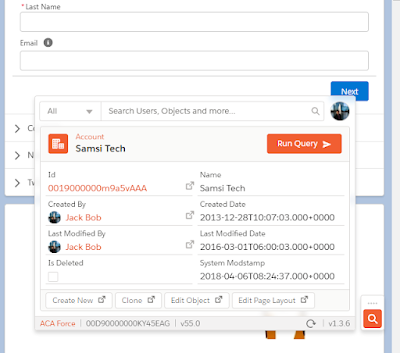
the Quick Access menu

Some of the features:

  1. Search users from the Quick Access menu, including inactive users (Salesforce Inspector does not support searching inactive users)
  2. Continue from (1) - Login As, open user detail, open role, open profile, reset Password, deactivate user, new user, add multiple users.
  3. The Quick Access menu will detect and show information based on the current page. On a record page, it will show the system info, from Id, Name, Created By, etc. On other pages, will default to search.
  4. Continue from (3) - Create New, Clone, Edit Object (does not go to the field tab as Salesforce DevTools, Edit Page Layout (does not tell which page layout is used for the current record)
  5. Query all fields from active record open into Query Editor
  6. Query Editor, support multi-tabs, auto complete (as in Salesforce Inspector), save query and open saved query, export result to CSV file, but not to update/insert record as Salesforce Inspector do.
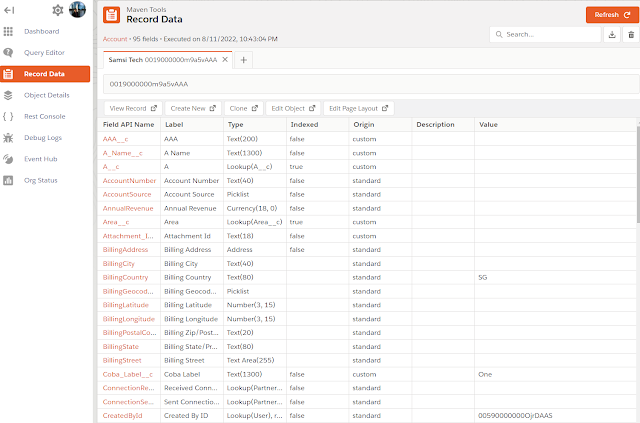
  7. Record Data, show all fields: API Name, Label, Type, Value, etc.
  8. Object Details include export object details, fields, child relationships
  9. And more...


Tips: if you can't open the dashboard by clicking the icon in the Chrome extension toolbar (after restarting the browser or computer), try this link. The same applies to the Quick Access menu, you may need to restart the browser or computer.

Get it from here! The current version of this blog is written: 1.3.6 (3 May 2022).


EasyCrud

Assign your CRUD and FLS for Salesforce in Bulk from Single Screen. This extension allows Salesforce Admins/Developers to assign CRUD and FLS Permissions from a single screen. There are also features that provide the ability to export permissions in CSV and also generate a dashboard for the permissions.

This is a must-have Chrome extension, for setup and troubleshooting issues related to Salesforce objects and fields access. Once the extension is added, restart your Chrome or Edge browser.

When opening an object in the object manager, you will notice 2 menus are added at the bottom of the left panel, Object Permissions and Field Permissions. if you do not see the menu, wait for a few seconds.

Object Permissions

Show in a matrix of Profiles and Permission Set versus Permission (Create, Read, Edit, Delete, View All, Modify All). You also can filter the Profiles and Permission Sets by the Permission (Create, Read, Edit, Delete, View All, Modify All, Profiles, Permission Sets, and Permission Sets Groups). 

You can make access changes from here by ticking/unticking the checkbox and then clicking the Save button. Additionally, click Export to get the data in a CSV file.


Field Permissions

Similar to Object Permissions, but for fields in the object. Show in a matrix of Profiles and Permission Set versus Permission (Read, Edit). You also can filter the Profiles and Permission Sets by the Permission (Read, Edit, Profiles, Permission Sets, and Permission Sets Groups). 


Similar to Object Permissions, you can make access changes from here by ticking/unticking the checkbox and then clicking the Save button. Additionally, click Export to get the data in a CSV file.


Get it from here! The current version of this blog is written: 2.0.0 (4 Aug 2022).


Wednesday, January 5, 2022

Salesforce DevTools

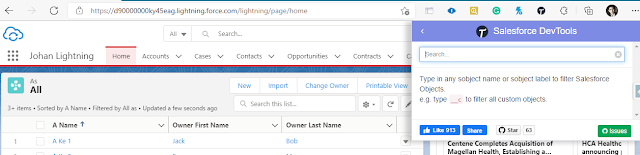
Salesforce DevTools – a powerful Chrome extension for Saleforce.com developers. Although it mentions that the tool is for developers, but Salesforce admin and power users can make use of this tool too for daily productivity.

As per the document here, features from this tool:

  • Quickly access to new record page, list page, and object setting page.
  • Exporting Objects Fields, Page Layout, List View Definition as Excel
  • Generating Salesforce data model (ERDs) as SVG file
  • Fully GUI Query editor for generating SOQL and exporting as Excel
  • Show/Hide object API name on the object detail page with 1-click.
  • All check on profile edit and field permission edit page.

Once this extension is installed from here, you should see a "T" icon shown in the list of your browser extensions.


Note: the extension can be used in the Edge browser too.

If you have not used Salesforce inspector, you should try it, as both tools are complementing each other.

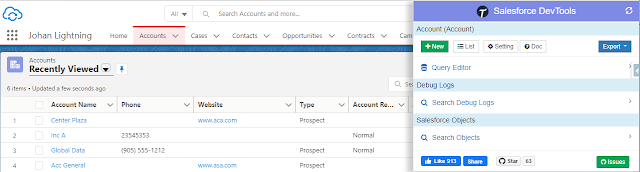
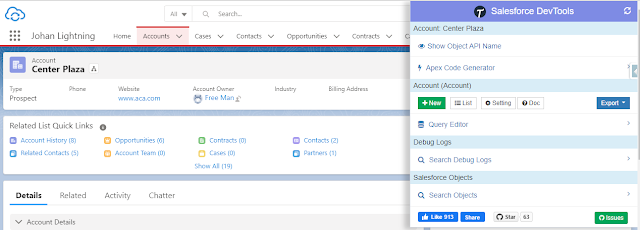
To use the tool, simply click the icon and you will be presented with a list of menus. The tool detects what Salesforce page that you are in, and it will show different menus based on the active Salesforce page opened, if you are not opening a Salesforce page, no menu will be shown.

Home Page

Tab / List View (object auto selected)

Record Page (available show/hide API Name)

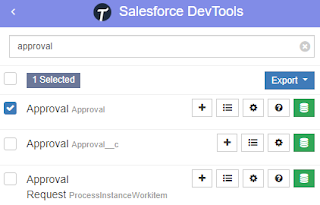
Search Objects 

This feature is available on all pages, the purpose is to search for an object or multiple objects, and work on it.


What you can do here?
  • Click + (New) icon to create a new record, even no tab is created for that object, it simply opens a URL such as https://domainname.lightning.force.com/lightning/o/objectname__c/new
  • Click the List icon to open the list view page for the object, it simply opens a URL such as https://domainname.lightning.force.com/lightning/o/objectname__c/list
  • Click the gear (Setting) icon to open the Fields & Relationships page for the object 
  • Click ? (Object Reference) icon to open documentation for the object, only for standard objects.
  • Click the Export button then select items that you want to export, but before that, you need to select an object or multiple objects:
    • Objects Definition
    • Objects Fields Definition
    • ERDs (svg) -- ideally should select a few related objects to see their relationship
    • Page Layouts
    • List Views
  • Click the green (Query Editor) icon to display the query result, or to export the result to an Excel file. The query editor supports field name auto-completion, including after where. You also can use the parent relationship queries syntax here.


Show/Hide Object API name

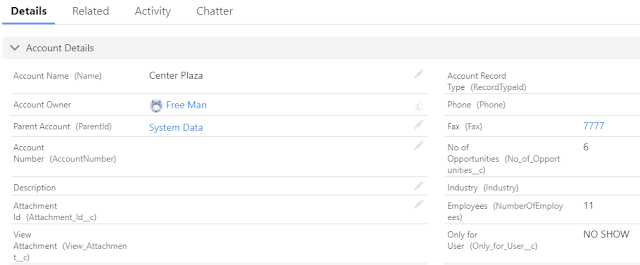
If you are on a record page, you should see "Show Object API Name" as the first menu, by clicking this, the field API name will be added after the field label name.


If you do a query from the record page, the query will automatically add WHERE Id = 'xyz', the xyz here is the record Id of the opened record. You can select all fields by clicking the checkbox before "Field Label"


Object Defenition (FULL)

Export Object Defenition (FULL) will export all items below to an Excel file:

  • Object Defenition Detail
  • Fields Definition
  • Fields Level Security by Profile
  • Validation Rules
  • Workflow Rules and Actions
  • Apex Triggers


Export Page Layout will export only page layouts that are only assigned to your profile, not all page layouts in the system. But, it will include:

  • Field Label
  • API Name
  • Data Type
  • Position Column
  • Readonly (in page layout)
  • Required (in page layout)
  • Note
  • Related List with columns


Current version: 3.8.0 - 4 April 2021


Wednesday, December 29, 2021

Salesforce Sandbox Version

Shows your salesforce sandbox version next to your sandbox host, this is very useful when a preview release is available in the sandbox instances.

Tired of having to manually look at what version your sandboxes are?  Well, let a computer do all that tedious work for you! This extension will load an icon and alt text next to your instance name so you can see if the sandbox is a spring/summer/winter instance.

Get it here!

Friday, November 17, 2017

Show Password

Chrome definitely is the most famous web browser at this moment, and if you are a Salesforce admin, consultant, or developer like me, you probably have many Salesforce login credential. Chrome is smart and makes our life easier by cache the password, so we do not need to remember it or using 3rd party tool to store it. But somehow, we can't see the password directly in the browser, example if we need to login using Data Loader or Salesforce mobile app.


1. From Setting Menu
As Chrome setting menu is keep changing by the versions, rather than to memory which menu should I go, just search with "password" from the settings menu, go to Settings and type "password", it would filter just menu related to password, then select "Manage passwords".


This will list down all username and the password (in masked) stored in Chrome, click Show password (eye icon) to see the password, Chrome will ask your Google password for security.


2. ShowPassword Chrome extension
As you may aware that Chrome has so many extension develop by people around the world, and most of them are free. There is an extension called ShowPassword built for the purpose to reveal the masked password in Google Chrome.

When this extension added to your Chrome, by default, you just need to hover your mouse over the masked password text for 0.5 seconds to reveal the password, or you also can change the way to reveal the masked password.


Type: Google Chrome extension

Paid/Free: Free

Publisher: a1618@love.com

Video: https://www.youtube.com/watch?v=71vyCtuFn-I

Installation: https://chrome.google.com/webstore/detail/showpassword/bbiclfnbhommljbjcoelobnnnibemabl?hl=en

Version: 1.1.5


Blog last updated: 17 Nov 2017


Wednesday, August 2, 2017

Quick ChangeSet & Navigator

We blog about Google Chrome extensions that can be used to help us when building Change Set: Salesforce Change Set Helper and Boostr for Salesforce, both of them are free.

Here is another free Google Chrome extension that can make our life easier when adding Change Set Components, it called "Quick ChangeSet & Navigator".

This extension help to add components into Change Set without having to load each page as well as navigating Component Type and paging in Salesforce.

Here is the simple step by step:
1. Create a new Change Set or open existing Change Set haven't upload
2. Click Add button, make sure you are in "Add to Change Set" page, otherwise, the tool will not work.
3. Click "Quick ChangeSet" icon from Google Chrome extension bar
4. Select the component by change filter and paging, this is pretty fast as the page not keep reload


Type: Google Chrome extension

Paid/Free: Free

Publisher: sanjaykeynotes.blogspot.com

Video: https://www.youtube.com/watch?v=71vyCtuFn-I

Installation: https://chrome.google.com/webstore/detail/quick-changeset-navigator/jhoddpnaknifeinaojmahfmbgephkodj

Version: 1.0.2


Blog last updated: 2 Aug 2017


Sunday, May 7, 2017

Salesforce Change Set Helper

Salesforce Change Set Helper is a Chrome extension to improve the usability of Salesforce Change Sets. It allow Change Set with additional information, such as last modified date, last modified by, etc. It also allows comparison the component with other org.

Features include: 
 - Includes the last modified date and user and api name for each item.
 - Automatically ordered by most recent modified first
 - Filter/Search/Order by any field.
 - Sets all pages to show the 1000 rows.  If more than 1000 items in a page, asks if you want to continue to retrieve more.
 - View and Search on items in the change set.  This allows you to see the whole change set and search to make removing much easier.
 - Compare to another org (uses OAuth2.0 -- no username or password information is seen or stored by this extension).
 - Shows the last modified date and user for the compared org as well.
 - Click the file name to see a diff of the metadata file between orgs.

Note that there is a delay when loading large pages and you may need to disable other chrome extensions that alter the change set page.

To use the Salesforce Change Set Helper, edit your Outbound Change Set in Salesforce. The additional information and functionality will automatically be added to the page.

This is standard Salesforce Change Set when you want to add component:


When Change Set Helper added and enabled


You also can compare the component with other org.


Type: Google Chrome extension

Paid/Free: Free

Publisher: brainfield.initiative@gmail.com

Installation: https://chrome.google.com/webstore/detail/salesforce-change-set-hel/gdjfanbphogooppaefebaaoohdcigpoi

Version: 2.0.2


Blog last updated: 7 May 2017


Fake Data

This Google Chrome extension is not specific for Salesforce usage only, but it will work for both Classic and Lightning. This will help you that need to keep entering fake data for some testing.


Fill form input fields with fake random data.
- Fill form input fields on the fly with fake random data.
- Zero configuration needed out of the box, just cmd+double click / alt+double click on each input you want to fill.
- Has an auto-learn feature for unrecognized fields.
- Power users are able to define their own custom generators using JS code.

Keyboard + Mouse Shortcut:
OS X: Cmd + Double click
Windows / Linux: Alt + Double click

If the field is not recognized:
If a field is not recognized automatically, then right-click on it -> go to Fake Data -> select the appropriate generator that you want to be used with that field in the future.

Next time you double click on the same field it will be recognized automatically.


Type: Google Chrome extension

Paid/Free: Free

Publisher: Hater Apps

Installation: https://chrome.google.com/webstore/detail/fake-data/gchcfdihakkhjgfmokemfeembfokkajj

Version: 1.6.0


Blog last update: 7 May 2017


Tuesday, April 11, 2017

SuperTools from WalkMe

SuperTools from WalkMe is Google Extension add-on, so you do not need to install anything in your Salesforce org., or ask your admin to enable it for you.

At this moment, there are 2 main features come from SuperTools offered by WalkMe for free.

1. SuperEdit
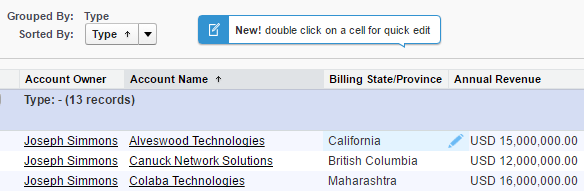
Would it be cool when you can edit data directly in Salesforce report? With this tool, you can do this with ease. It works for Tabular and Summary report in Classic. As per standard Salesforce validation, it will only allow user to edit data they have access, otherwise, you will get an error.

Just install the Google Extension from the link in the reference below and you will see the magic.


Notice a pencil icon shown when you hover your mouse over a report open.

2. SuperSearch
Can't be denied that every Salesforce user should have use Search function, it's pretty cool when you can search any data from a single place. But, with SuperSearch from WalkMe, the search experience would be even powerful, let's see.

This is standard Salesforce global search, recent items you opened earlier will be shown in the search result before you click the Search button.


Compare with addition power from SuperSearch, it will search all records as you typing.


Watch the videos from WalkMe SuperTools site for more detail. But, if you don't like, simply delete the extension and nothing left behind in your Salesforce.


Type: Google Chrome extension

Paid/Free: Free

Publisher: WalkMe

Installation: https://chrome.google.com/webstore/detail/walkme-extension/fckonodhlfjlkndmedanenhgdnbopbmh

Version: 1.6.22


Blog last update: 11 Apr 2017


Sunday, January 29, 2017

Whitelist All IPs for Salesforce

Salesforce has a great security model for 2 factor authentication and trusted systems.  Sometimes, however, it can be onerous.

If you want to ensure that a user can access Salesforce without requiring a verification code or security token, you need to "whitelist" their IP on Setup => Security Controls => Network Access.

If you have a lot of IPs to whitelist, or you want to whitelist dynamic IPs, or you simply want to disregard this requirement altogether, enter this extension: Whitelist All IPs for Salesforce!

Simply:
1) Enable this plugin
2) Navigate to Setup => Security Controls => Network Access in your Salesforce org (must be an Admin)
3) Click the Whitelist All IPs button
4) Wait!  There is a progress indicator, it can take 30 seconds to 3 minutes depending on your connection.

Type: Google Chrome extension

Paid/Free: Free

Publisher: raydehler.com/cloud

Installation: https://chrome.google.com/webstore/detail/whitelist-all-ips-for-sal/nnlnikmkkbpgioojghgojoejgcheilic?hl=en

Version: 0.0.1


Blog last update: 29 Jan 2017


Friday, January 20, 2017

Salesforce Inspector

The most used Salesforce Chrome extension by Salesforce professionals has been upgraded to version 1.19 with many new/additional features, so get it here Salesforce Inspector reloaded.

A few noticeable changes:

Ability to search for inactive user


Direct link to open Fields, Record Types, and Object List


Ability to add Permission Set and Permission Set Group directly

A brand new UI for Data Export


Shortcuts
Search profile, permission set, settings, flow, etc.
Last update: 19-Jul-2023


Salesforce Inspector is one of the most popular productivity tools for Salesforce admin, to complement the Salesforce DevTools extension.

Productivity tools for Salesforce administrators and developers to inspect data and metadata directly from the Salesforce UI. Extension to add a metadata layout on top of the standard Salesforce UI to improve the productivity and joy of Salesforce configuration, development, and integration work.

What do you get after this extension is installed on your Chrome? A side menu with the arrow icon at the right side of the Salesforce screen.

1. Objects tab
Open the Salesforce inspector arrow will open a quick access menu, by default it will show the Objects tab. If the browser currently opens a record, the record will be automatically pulled, otherwise, you can search it manually:
  • Record Id
  • Id prefix (3 characters) or Object name

This is the Home page, that's why no record is displayed.

Open the panel from an Opportunity record

Click the object name (such as Opportunity in the above screenshot) will open the setup menu in Fields & Relationships for that object, but overwrite the record open, so it is not open into a new tab.


2. Show all data
This is related to (1) if this is related to an object, clicking the "Show all data" button will open the window (overwrite Salesforce page) with the default column: 
- Field API Name
- Label 
- Type (formula field show with * at the end) and click "All fields metadata" at the end of the field will show the complete formula for that field.

If this is related to a record, in addition to the columns in (1), Value will be added here by default.

You can easily find a label or value from this table from the search box.


This screen offers more functions than just search:
  • Edit, click the Edit button at the top to edit all fields, or double-click a cell under Value on a certain row to edit a field, this includes fields that are not added to the page layout
  • Delete, click the Delete button at the top, and the system will prompt you for confirmation to delete.
  • Clone
  • Export, this will open the Export query window, where the Id automatically added as the criteria
  • View record in Salesforce
  • Edit Page Layout, open the page layout used by the record opened
  • Object setup (Lightning), this will open the setup menu in Fields & Relationships for that object.
The above features will only show based on the record/object and user access.

If you see at the further right, there is an arrow next to each row (field), click the arrow and select Field setup (Lightning), this will directly open the field detail in the setup menu.


3. Users tab
This is a fast shortcut when you need to check a user detail or to log in as that user (assume you have permission).


4. Data Export
This will open a SOQL query window, it supports field and objects auto-completion as you type, including and relationship query with the parent object. It also records your query history and you can manually save queries, so you can re-use your previous queries.

Hit the Export button to see the result, type in the filter box to filter the result further, then you can copy the result to Excel, CSV, and JSON


5. Data Import
It supports Insert, Update, Upsert, and Delete, then select the object, format, and paste the file to be imported. The system will try to match the mapping, but you can manually re-map it.


6. Org Limits
You can check the limits consumed for many items, but this does not include limits in an object or automation tool.


7. Download Metadata
You can select what type of metadata to download, I am not advised to Select all, because it will take a lot of time, so just select metadata items that you would like to download, such as report type.

Once completed, simply download the zip file and extract it.


8. Setup Home
Click this menu, simply to open the Setup menu, and that's all.


Type: Google Chrome extension

Paid/Free: Free

Publisher: Søren Krabbe

Installation: https://chrome.google.com/webstore/detail/salesforce-inspector/aodjmnfhjibkcdimpodiifdjnnncaafh?hl=en

Version: 1.12


Blog last updated: 9 Jan 2022


Tuesday, January 3, 2017

LogMachine help to analyze log efficiently

This plugin is for Salesforce debug log, it will help in analyzing the log efficiently by highlighting key important sections in the log and also giving help tips to avoid error.

Once installed to Chrome, nothing to configure, just navigate to your debug log and you will see colorful background color when open the log file.


Type: Google Chrome extension

Paid/Free: Free

Publisher: gouravrocks247@gmail.com

Installation: https://chrome.google.com/webstore/detail/logmachine/ngppecjgpbgmfcjjakdjfbnpnihcgpdb?hl=en

Version: 1.1


Blog last update: 3 Jan 2017


Thursday, September 29, 2016

Salesforce advanced Code searcher

There are 2 main tools when you add this Google Chrome extensions. Go to Salesforce setup page to find them:

1) Advanced Quick Find 
This part gets added in side navigation bar on all set-up pages. Select the code component that you want to go to, then start typing the name of the code,an autocomplete suggestion pops up, select the one that you want to go to.


2) Developer Utilities
2.1) Search Your Code - this will include search in: Class, Page, Trigger and VF component.
This component get added in force.com home page only. Let's say you want to know where you want to know where is an object used your code, like proj__c. Right now to find this out you have to either go thru all the code individually or create a force.com project in eclipse and then search there. There's no way we can do this directly in Salesforce. This string search will help you do that. You have to check the code components in which you want to search the code, enter a string in the input text field and hit enter. You will be presented with a list of code components where the string is used.


2.2 ) Code Coverage Extract: View and download the code coverage in your org.


Type: Google Chrome extension

Paid/Free: Free

Installation:
https://chrome.google.com/webstore/detail/salesforce-advanced-code/lnkgcmpjkkkeffambkllliefdpjdklmi

Version: 1.3.4


Blog last updated: 29 Sep 2016


Thursday, September 8, 2016

Salesforce QuickNav

This is another extension from Jeff Hube, see previous blog for Salesforce Toolbar. With this extension added, press the tilde key (~ or `) to open a textbox from which you can easily access any page from Salesforce's setup menu or any tab.

Start typing the name of the setup page or tab you would like to access and then click it once it appears in the list, or use the up and down arrow keys to select it and press enter. Holding shift while pressing enter will open it in a new browser tab.


Type: Google Chrome extension

Paid/Free: Free

Publisher: Jeff Hube

Installation: https://chrome.google.com/webstore/detail/salesforce-quicknav/efeemnomnegfdnpcbpppilbdhijjhkff/related?hl=en-US

Version: 1.0.7


Blog last update: 8 Sep 2016


Salesforce Toolbar

If you are Salesforce developer, this extension "Salesforce Toolbar" will help you easily navigate to: Apex Classes, Apex Triggers, Visualforce Pages, Visualforce Components, Custom Objects, Custom Labels, Custom Settings, and Apex Test Execution. 

It also give you quick access to: Workbench, Console, Debug Logs, System Overview, Installed Packages, Standard Object, Convert ID from 15 characters, and current Org Id.


Type: Google Chrome extension

Paid/Free: Free

Publisher: Jeff Hube

Installation: https://chrome.google.com/webstore/detail/salesforce-toolbar/ablbkcpkgiaoambelcidmcpmbpjeadha?hl=en-US

Version: 2.8.1


Blog last update: 8 Sep 2016


Monday, August 22, 2016

Salesforce1 Simulator

Once this extension added to your Google Chrome browser, navigate to chrome://apps or click Chrome App Launcher next to Windows Start button.

This extension will be very helpful when you would like to test some changes done in Salesforce and it may effect in Salesforce1, or you need to demo Salesforce1 app but you do not have the devices.


Click above icon, a new window will be open to prompt you to enter your Salesforce login credential (depend on instance you would like to work on).


NOTES as of now, there are 2 things that you need to configure in Salesforce to make this extension works:
1. Enable Lightning Experience
2. From Setup | Apps | Mobile Apps | Salesforce1 Settings, select "Enable the Salesforce1 mobile browser app".


Type: Google Chrome extension

Paid/Free: Free

Installation:
Production / Developer - https://chrome.google.com/webstore/detail/salesforce1-simulator/cknbjckicenodbiaejbmkjhldffonggp

Sandbox - https://chrome.google.com/webstore/detail/salesforce1-sandbox-simul/mgknkgnenlhghpfpdcohmgiejlcaapih

Version: 0.1.3


Blog last updated: 22 Aug 2016


Wednesday, August 3, 2016

Chatter Monitor

Chatter Monitor is a Free Google Chrome Extension from Fronde.

Once you have the extension added, add your Salesforce/Chatter account and you can add multiple accounts you would like to monitor. Things yout can do with this extension:
- Post to your feed or a Chatter group
- Monitor feed
- Search feed
- Check your user detail and suggest item to follow
- Groups that you are member


Type: Google Chrome extension

Paid/Free: Free

Installation: https://chrome.google.com/webstore/detail/chatter-monitor/hhlhfkhgmnojpdbedbmcljmcihhcckkl/related?hl=en

More information: http://fronde.co.nz/chatter-monitor/

Version: 2.0.5


Blog last updated: 4 Aug 2016

Friday, April 15, 2016

Salesforce.com Quick Login As

As admin in Salesforce, you can login to any user by enable "Administrators Can Log in as Any User" from Setup | Security Controls | Login Access Policies. Once enabled, you will see Login link in user list view or Login button in user detail.

There is no issue with standard functionality given by Salesforce to login as someone else. But, with a Google Chrome extention "Salesforce.com Quick Login As", it will make you easier login as someone else by save a few clicks and maintains the page currently being viewed.

Main Points:
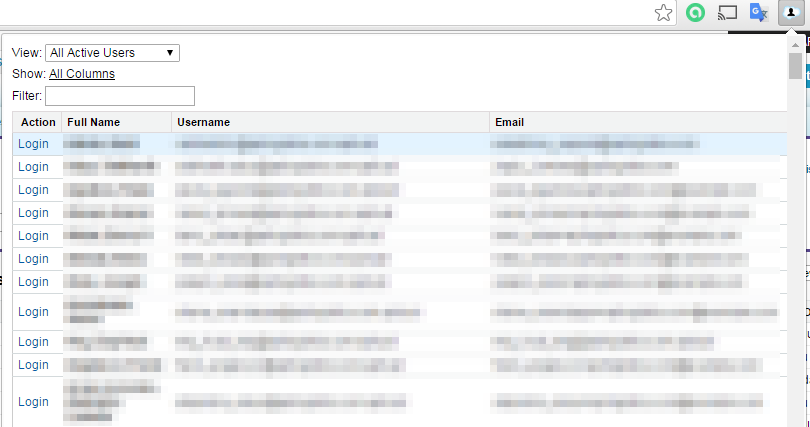
- Gives a popup of the users listed on the user listing page so you can select to login as a different user on any page.
- When a user is selected, it logs you in as that user and keeps you on the page you were viewing.
- When you log out, it will take you back to the page you were originally on when you logged in as the other user.

Additional Points:
- Above the user list in the popup, the "View" dropdown is available so you can change to another view from the user listing page.
- Only the first 4 columns from the user listing table are shown by default (including the login column) since the popup has a limited width.  A "All Columns" button is available if you can't identify the user you need by the default columns shown.


Type: Google Chrome extension

Paid/Free: Free

Installation: https://chrome.google.com/webstore/detail/salesforcecom-quick-login/dccccilgophpadpomgajjlkkioipoojh?hl=en

Version: 1.4


Blog last updated: 15 Apr 2016

Thursday, March 10, 2016

Linkclump for Salesforce user

If you are a Salesforce user that always open multiple tabs, this Chrome extension will help you. Although Linkclump is not really designed just for Salesforce usage, but it will help us in reducing click. Let's say you would like to open 5 Accounts from List View, usually you need to hover your mouse over each Account Name, right click, and select "Open link in new tab".


With Linkclump, this will activity will be much faster:
1. Place your mouse around the 1st or last account name to open
2. Right click mouse and hold it
3. Drag over all accounts you want to open (in new tab)
4. Release it

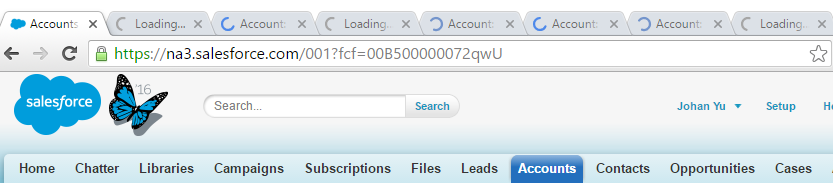
If you notice there is a number at top left (or right bottom depend on the direction you drag your mouse), this number tell you how many links you are going to open, see "7" at screenshot below.


Once release, it will open that 7 accounts in the new tab.


Type: Google Chrome extension

Paid/Free: Free

Installation: https://chrome.google.com/webstore/detail/linkclump/lfpjkncokllnfokkgpkobnkbkmelfefj?hl=en

GitHub: https://github.com/benblack86/linkclump


Version: 2.7.3
Blog last updated: 10 Mar 2016