Friday, August 12, 2022

Salesforce Grid Refresher

Salesforce does not offer the capability to auto-refresh list views (without clicking the Refresh button on the list view or refreshing the browser), so come to vote for this idea exchange, 20,840 points as of 12 Aug 2022.

The workaround is to add this Chrome extension called Salesforce Grid Refresher, it is a simple extension that does the job, which is the refresh all list views every 1 minute, and yes, you can't adjust it :(

Note: since version 1.5, you can adjust the refresh interval from 5 seconds to 15 minutes. Great job to the developer and thanks for listening.

This tool is particularly useful when you need to monitor a list view, such as new cases created or assigned.


This extension is working in the standard Lightning app and console app too. 

Get it from here! The current version of this blog is written: 1.4 (18 Apr 2021).


Thursday, August 11, 2022

Maven Tools for Salesforce

Another complete tool for Salesforce admin/developers. This extension is huge, if you are a Salesforce Inspector user, you will like this tool too. 

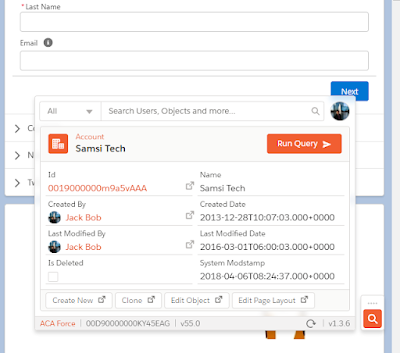
the Quick Access menu

Some of the features:

  1. Search users from the Quick Access menu, including inactive users (Salesforce Inspector does not support searching inactive users)
  2. Continue from (1) - Login As, open user detail, open role, open profile, reset Password, deactivate user, new user, add multiple users.
  3. The Quick Access menu will detect and show information based on the current page. On a record page, it will show the system info, from Id, Name, Created By, etc. On other pages, will default to search.
  4. Continue from (3) - Create New, Clone, Edit Object (does not go to the field tab as Salesforce DevTools, Edit Page Layout (does not tell which page layout is used for the current record)
  5. Query all fields from active record open into Query Editor
  6. Query Editor, support multi-tabs, auto complete (as in Salesforce Inspector), save query and open saved query, export result to CSV file, but not to update/insert record as Salesforce Inspector do.
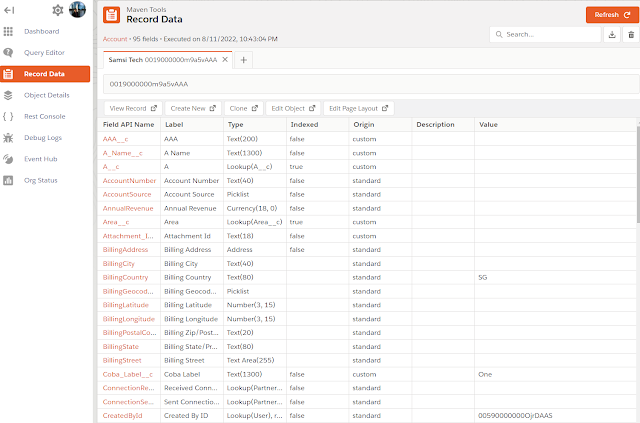
  7. Record Data, show all fields: API Name, Label, Type, Value, etc.
  8. Object Details include export object details, fields, child relationships
  9. And more...


Tips: if you can't open the dashboard by clicking the icon in the Chrome extension toolbar (after restarting the browser or computer), try this link. The same applies to the Quick Access menu, you may need to restart the browser or computer.

Get it from here! The current version of this blog is written: 1.3.6 (3 May 2022).


EasyCrud

Assign your CRUD and FLS for Salesforce in Bulk from Single Screen. This extension allows Salesforce Admins/Developers to assign CRUD and FLS Permissions from a single screen. There are also features that provide the ability to export permissions in CSV and also generate a dashboard for the permissions.

This is a must-have Chrome extension, for setup and troubleshooting issues related to Salesforce objects and fields access. Once the extension is added, restart your Chrome or Edge browser.

When opening an object in the object manager, you will notice 2 menus are added at the bottom of the left panel, Object Permissions and Field Permissions. if you do not see the menu, wait for a few seconds.

Object Permissions

Show in a matrix of Profiles and Permission Set versus Permission (Create, Read, Edit, Delete, View All, Modify All). You also can filter the Profiles and Permission Sets by the Permission (Create, Read, Edit, Delete, View All, Modify All, Profiles, Permission Sets, and Permission Sets Groups). 

You can make access changes from here by ticking/unticking the checkbox and then clicking the Save button. Additionally, click Export to get the data in a CSV file.


Field Permissions

Similar to Object Permissions, but for fields in the object. Show in a matrix of Profiles and Permission Set versus Permission (Read, Edit). You also can filter the Profiles and Permission Sets by the Permission (Read, Edit, Profiles, Permission Sets, and Permission Sets Groups). 


Similar to Object Permissions, you can make access changes from here by ticking/unticking the checkbox and then clicking the Save button. Additionally, click Export to get the data in a CSV file.


Get it from here! The current version of this blog is written: 2.0.0 (4 Aug 2022).


Wednesday, January 5, 2022

Salesforce DevTools

Salesforce DevTools – a powerful Chrome extension for Saleforce.com developers. Although it mentions that the tool is for developers, but Salesforce admin and power users can make use of this tool too for daily productivity.

As per the document here, features from this tool:

  • Quickly access to new record page, list page, and object setting page.
  • Exporting Objects Fields, Page Layout, List View Definition as Excel
  • Generating Salesforce data model (ERDs) as SVG file
  • Fully GUI Query editor for generating SOQL and exporting as Excel
  • Show/Hide object API name on the object detail page with 1-click.
  • All check on profile edit and field permission edit page.

Once this extension is installed from here, you should see a "T" icon shown in the list of your browser extensions.


Note: the extension can be used in the Edge browser too.

If you have not used Salesforce inspector, you should try it, as both tools are complementing each other.

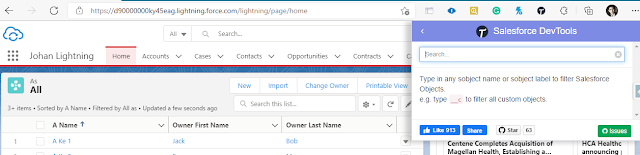
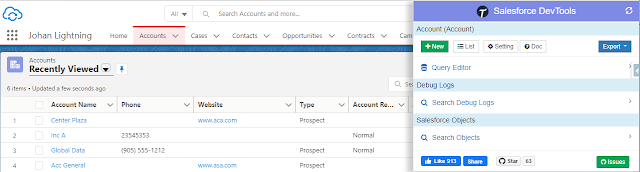
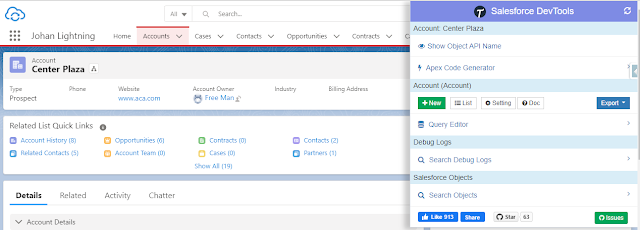
To use the tool, simply click the icon and you will be presented with a list of menus. The tool detects what Salesforce page that you are in, and it will show different menus based on the active Salesforce page opened, if you are not opening a Salesforce page, no menu will be shown.

Home Page

Tab / List View (object auto selected)

Record Page (available show/hide API Name)

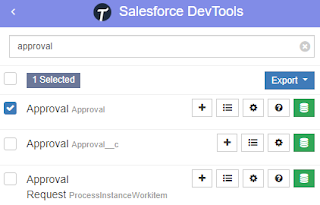
Search Objects 

This feature is available on all pages, the purpose is to search for an object or multiple objects, and work on it.


What you can do here?
  • Click + (New) icon to create a new record, even no tab is created for that object, it simply opens a URL such as https://domainname.lightning.force.com/lightning/o/objectname__c/new
  • Click the List icon to open the list view page for the object, it simply opens a URL such as https://domainname.lightning.force.com/lightning/o/objectname__c/list
  • Click the gear (Setting) icon to open the Fields & Relationships page for the object 
  • Click ? (Object Reference) icon to open documentation for the object, only for standard objects.
  • Click the Export button then select items that you want to export, but before that, you need to select an object or multiple objects:
    • Objects Definition
    • Objects Fields Definition
    • ERDs (svg) -- ideally should select a few related objects to see their relationship
    • Page Layouts
    • List Views
  • Click the green (Query Editor) icon to display the query result, or to export the result to an Excel file. The query editor supports field name auto-completion, including after where. You also can use the parent relationship queries syntax here.


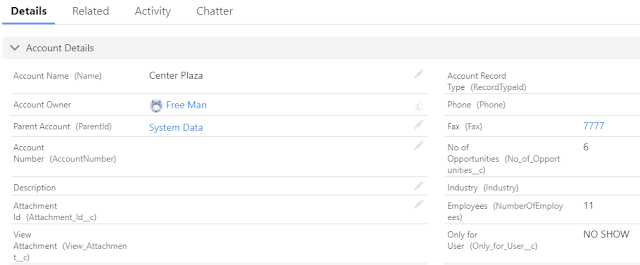
Show/Hide Object API name

If you are on a record page, you should see "Show Object API Name" as the first menu, by clicking this, the field API name will be added after the field label name.


If you do a query from the record page, the query will automatically add WHERE Id = 'xyz', the xyz here is the record Id of the opened record. You can select all fields by clicking the checkbox before "Field Label"


Object Defenition (FULL)

Export Object Defenition (FULL) will export all items below to an Excel file:

  • Object Defenition Detail
  • Fields Definition
  • Fields Level Security by Profile
  • Validation Rules
  • Workflow Rules and Actions
  • Apex Triggers


Export Page Layout will export only page layouts that are only assigned to your profile, not all page layouts in the system. But, it will include:

  • Field Label
  • API Name
  • Data Type
  • Position Column
  • Readonly (in page layout)
  • Required (in page layout)
  • Note
  • Related List with columns


Current version: 3.8.0 - 4 April 2021


Wednesday, December 29, 2021

Salesforce Sandbox Version

Shows your salesforce sandbox version next to your sandbox host, this is very useful when a preview release is available in the sandbox instances.

Tired of having to manually look at what version your sandboxes are?  Well, let a computer do all that tedious work for you! This extension will load an icon and alt text next to your instance name so you can see if the sandbox is a spring/summer/winter instance.

Get it here!

Tuesday, September 7, 2021

Profile and Permission Set Helper (2)

Almost 3 years ago, I blog about an app called Profile and Permission Set Helper from Salesforce Labs. This app helps you to convert existing Profiles permissions in your org to Permission Sets, when I wrote that blog, the app was still at version 1.5.

Fast forward 3 years later, now the app is on version 2.28, in addition to helping you to convert from a profile to a permission set, it also has a new feature called Permission Analyzer, here is the description of the app

Analyze by a permission to view the list of profiles and permission sets that contain it. You can also analyze by user to view a summation of all permissions assigned to a user. View which specific profiles or permission sets contain a permission. Understand your permissions structure with just a few clicks and keep your permission assignments up-to-date.

In my use case, I have a user that suddenly has edit to all accounts, although the user profile doesn't have Modify All on Accounts, so what is the caused?

Using Permission Analyzer, I look up that user then drills into Account object and see how the user gets Modify All permission on Account.


In the above sample, the permission set name is a clear "Modify Acct", so you can guess what is inside the permission set, imagine if that permission is called "View Campaign", at a glance, you will not guess that permission set has anything to do with Account.


However, if you are good with SOQL, you can get almost the same result using query

SELECT Id, SObjectType, Parent.Label, Parent.IsOwnedByProfile
FROM ObjectPermissions
WHERE PermissionsModifyAllRecords = True 
AND (ParentId IN (SELECT PermissionSetId FROM PermissionSetAssignment WHERE Assignee.Name = 'Hello User'))
AND (SobjectType = 'Account')
ORDER BY Parent.IsOwnedByProfile DESC, Parent.Label

Result


Reference:


Saturday, May 30, 2020

CMTD Enhanced Related List

In Summer 19 release, Salesforce introduces Enhanced Related Lists. Enhanced List offers more features compared to the older Basic List or Tile option.

Enhanced Related Lists features:
  • Set the number of records to display in the related list
  • Show list view action bar
  • Refresh button
  • Wrap text in the column
  • Resize and sort columns
  • More than 4 fields on the related list (compare to the Basic List)

Tile

Basic List

Enhanced List


But, to filter related list, you have to click "View All" at the bottom of the related list, then click the Filter icon, from there, you can add quick filters to the related list with Filter icon. Related list quick filters act similarly to list view filters except they aren’t saved, persist only throughout your current session, and can’t be shared.


CMTD Enhanced Related List is a “Custom Metadata Type Driven” custom lightning component that provides enhanced features to display related list records in Lightning App.

The component supports configurable filter, sort, and fields to group relevant records together. It supports List and Tile mode with the Lightning look and feels. Use Badge UI Override to highlight important fields to the user.

Use and configure these components on any child objects and boost your lightning implementation. Configure the Filter, Sort, and Fields on this reusable component on any lookup records to group relevant records in a single page (eg: Open and Closed Cases).

First, you need to install this component from AppExchange, as per the Lightning component requirements, you need to enable my domain.

Below is the 3-step process to start using this component:
1. Create configuration data records in the Custom Metadata Type
2. Drag and drop the component in the App Builder
3. Configure component attributes to suit your design

1. Create configuration data records in the Custom Metadata Type


- From the setup menu, go to Custom Metadata Type 
- Click "Manage Records" on Custom Metadata Type created as part of CMDT installed package.
- Click the New button and enter the info, see sample below:


All the above fields will be shown in the CMDT Lightning component. here is the basic explanation:
- Enhanced Related List Name: imagine this as API field name, so not really use in layout
- Label: this would be header label in the table
- Related List Name: this should match with Related List Name in the component
- Field API Name: this is to match values to retrieve from this field
- Order: from left to right
- Target API Name: add value here will allow the user to click and open the record


2. Drag and drop the component in the App Builder
Edit the lightning page and looks for the "CMDT Enhanced Related List" component under Custom - Managed.


3. Configure component attributes to suit your design
Once the component added, click the component to configure it.


In the sample screenshot above, the component added to the Account lightning page:
- Related List Name: this is the same value configured in the Custom Metadata Type 
- Filter is configured in the component, not in Custom Metadata Type 
- Record sort also configured in the component, not in Custom Metadata Type 


Here is the final result:


Type: Managed Package; AppExchange

Paid/Free: free

Publisher: Salesforce Labs


Version: 2.6.0


Blog last updated: 30 May 2020


Monday, October 29, 2018

Profile and Permission Set Helper

When you have a profile assigned to 1 or 2 users with different extra permission compare to other profile, it is a good chance to merge the profile and create a permission set for that 1 or 2 users.

Profile and Permission Set Helper from Salesforce Labs help admin to easily convert existing Profiles permissions in your org to Permission Sets. Within a few clicks, you can clone all Permissions from a certain Profile to Permission Sets, which are ready to be assigned to new users in no time!

Once the app installed, select Profile and Permission Set Helper app, there will be only 1 tab called Converter, then select the profile that you want to convert into Permission Set.

Notes: this app is only work in Lightning.


The conversion process is very fast, only a few seconds, and it will create a new Permission Set as you named it. The existing profile will still be there and not touch.


Now, you can assign the permission set as per normal to users, and delete the profile when required.


Type: Managed Package; AppExchange

Paid/Free: free

Publisher: Salesforce Labs

Installationhttps://appexchange.salesforce.com/appxListingDetail?listingId=a0N3A00000FeF99UAF

Version: 1.5


Blog last updated: 29 October 2018


Wednesday, September 12, 2018

Field Footprint

You probably heard about Field Trip, one of the most famous free app available in AppExchange, this tool able to analyze fields population, this is very useful when you are doing field clean-up or to get data completeness. However, Field Trip has not updated since Jun 2015.

Field Footprint is kind of similar to Field Trip, but with additional features, such as checking record type, field usage in Validation rules, Workflow rules, Workflow Field Updates, and Reports.

On top of that, one thing I notice from this tool compare to Field Trip, when running a Field Trip to analyze an object with 134K of data, Field Trip required 75 minutes, while running Field Footprint analyze to the same of dataset, Field Footprint only need 25 minutes, so the performance is 3x better.

Once complete, you will see the result in the Footprint Detail page, or open Footprint results in a report.


With this tool, you also can check fields usage per record type, click the record type name in the main analysis page, it will tell you how many records for that record type and the population for each field.


Type: Managed Package; AppExchange; Private Listing

Paid/Free: free

Publisher: Salesforce Labs

Installationhttps://appexchange.salesforce.com/appxListingDetail?listingId=a0N3A00000EShrRUAT

Version: 2.8.33


Blog last update: 13 September 2018

Etherios EasyDescribe - Free MetaData Viewer/Extractor

EasyDescribe is a free tool to view and extract "object" metadata details. Don't waste time clicking through multiple screens to lookup record types, field types, picklists, and other metadata. EasyDescribe it and get everything at once!

Once the app installed, select EasyDescribe tab and select an object you would like to extract. You can turn on or off items you would like to extract, from fields, child relationship, and record type.


Type: Managed Package; AppExchange; Private Listing

Paid/Free: free

Publisher: West Monroe Partners

Installationhttps://appexchange.salesforce.com/listingDetail?listingId=a0N300000018leZEAQ

Version: 1.91


Blog last update: 12 September 2018

Tuesday, February 13, 2018

Salesforce Config Workbook

If you need more than just export Salesforce fields to Excel, such as Field Level Security, Page Layout, Profile, Flow, Field usage and many many more features that help admin life easier - Config Workbook by ConfigWorkbook would be your choice.

Once installed, you will be presented with a dashboard showing metadata breakup, code breakup, user login, and much more at a glance.


Then, you will also find a bunch of metadata reports defined, from object, profile, flow, user, permission set, layout and so on.


You can try this tool for free for up to 8 reports, get it from AppExchange.


Sample page layout report for Lead object


Type: Managed Package; AppExchange

Paid/Free: free for up to 8 reports

Publisher: ConfigWorkbook

Installation: https://appexchange.salesforce.com/appxListingDetail?listingId=a0N30000000q4evEAA

Version: 2.99


Blog last updated: 13 February 2018


Saturday, February 10, 2018

Field Dumper: Easily export your Salesforce fields to Excel

Salesforce allowed us to view all fields from an object in a glance, including Field Label, Field Name (API Name), Data Type, Controlling Field, and Indexed. However, sometimes we just need to extract it for different purposes:
- Documentation
- Audit
- To compare all formula
- To get help text for each field
- To export from many objects
- etc.

With Field Dumper, a free tool available in AppExchange, admin can easily export Salesforce Data Model to Excel. Produce an Excel document that lists out your data model - showing field level information for your Salesforce objects. Supports extract of multiple custom and standard objects to one workbook.

This tool works for both Classic and Lightning Experience UI.


The excel file produces may contain multiple tabs, one tab for one object, each tab will have following info:
- API Name
- Label
- Type
- Is Custom
- Is External ID
- Is Unique
- Is Formula
- Is Required
- Dependent Picklist
- Length
- Formula Text
- Help Text
- Picklist Values


Type: Managed Package; AppExchange

Paid/Free: free

Publisher: POP

Installation: https://appexchange.salesforce.com/listingDetail?listingId=a0N3A00000EJg2hUAD

Version: 1.2.0


Blog last updated: 10 February 2018


Friday, November 17, 2017

Show Password

Chrome definitely is the most famous web browser at this moment, and if you are a Salesforce admin, consultant, or developer like me, you probably have many Salesforce login credential. Chrome is smart and makes our life easier by cache the password, so we do not need to remember it or using 3rd party tool to store it. But somehow, we can't see the password directly in the browser, example if we need to login using Data Loader or Salesforce mobile app.


1. From Setting Menu
As Chrome setting menu is keep changing by the versions, rather than to memory which menu should I go, just search with "password" from the settings menu, go to Settings and type "password", it would filter just menu related to password, then select "Manage passwords".


This will list down all username and the password (in masked) stored in Chrome, click Show password (eye icon) to see the password, Chrome will ask your Google password for security.


2. ShowPassword Chrome extension
As you may aware that Chrome has so many extension develop by people around the world, and most of them are free. There is an extension called ShowPassword built for the purpose to reveal the masked password in Google Chrome.

When this extension added to your Chrome, by default, you just need to hover your mouse over the masked password text for 0.5 seconds to reveal the password, or you also can change the way to reveal the masked password.


Type: Google Chrome extension

Paid/Free: Free

Publisher: a1618@love.com

Video: https://www.youtube.com/watch?v=71vyCtuFn-I

Installation: https://chrome.google.com/webstore/detail/showpassword/bbiclfnbhommljbjcoelobnnnibemabl?hl=en

Version: 1.1.5


Blog last updated: 17 Nov 2017


Monday, September 11, 2017

Approval Process Reminders

The main reason for approval processes to get stuck is because users forget they need to approve them. This app gives your users a daily summary email of any pending approval processes assigned to them.

Easiest possible way to get started and automatically emails all users blocking approval processes
- Emails include links to the records to approve with oldest approvals first
- Supported in Lightning & Classic
- Daily reminder emails for pending approvals

This app is pretty simple to configure, once installed, you just need to enable the scheduler from "Approval Process Reminders" tab, you also can run it manually for testing by click "Run Batch Now" button.


All the users that need to approve/reject pending approvals will get one email daily, with links to the object page, and it also show days it has been stuck, sample email as below:


User need to looks for Approval History to approve or reject


Limitation: we can't configure the email template, including signature by the publisher "Sent from CloudAnswers Approval Process Reminders", also we can't easily configure the schedule time.


Type: Managed Package; AppExchange

Paid/Free: free

Publisher: CloudAnswers

Installation: https://appexchange.salesforce.com/listingDetail?listingId=a0N3000000B4caiEAB

Version: 1.5.0


Blog last updated: 11 September  2017

Signature Capture for Salesforce Lightning

When you are migrated to Lightning, you know that you can add components into the Lightning page. At this moment (Spring '17 release), Salesforce provides less than 20 Standard components, such as: Chatter, Path, Report Chart, and etc. But you can add components by writing custom Lightning Component or install from AppExchange.

Signature Capture is a Lightning Component that allows signing via a browser or mobile device and stores the captured signature as a Salesforce attachment a Salesforce file
    - Capture customer sign off at the point of task completion
    - Record the signature against any object that supports attachments or files
    - Pure HTML5 - no additional libraries or browser add ons


Type: Managed Package; AppExchange, Lightning Component

Paid/Free: free

Publisher: BrightGen Ltd

Installation: https://appexchange.salesforce.com/listingDetail?listingId=a0N30000000q5XOEAY

Version: 1.18


Blog last updated: 10 September 2017

Sunday, August 27, 2017

FOLDERIZE - provide alternative Folder Structure for Salesforce

Salesforce introduces sub folder in Library since Summer '17 release, but you can only add the subfolder from Lightning Experience, also you cannot see all folders and subfolders in a glance, you have to open each folder to see the subfolders underneath.


While in earlier Summer '15 release, we can use Salesforce Sync desktop agent, create folders and subfolders created in the desktop, and it will sync to Salesforce as folders too, this works for both Classic and Lightning. But same as the folder in Library, you need to click each folder to see subfolders underneath.


This screenshot was taken from Classic.


Folderize provides the ability to create folder hierarchies of unlimited levels, drag files or add library documents to the folders. It provides a view of all folders and sub folders in a glance, and work in both Classic and Lightning. You can add documents to Folderize from both library and files.


Type: Managed Package; AppExchange

Paid/Free: free

Publisher: ShareMethods


Version: 4.04


Blog last updated: 27 August 2017


Thursday, August 24, 2017

AddressTools Free

By default, State and Country in Salesforce are textbox fields, but Salesforce provides a feature to make State and Country as picklist, admin need to enable and configured it properly. Once the setup was done, instead of manually typing in the country and state name, the user just select from State and Country values defined, check out this blog related to this.

However, to implement standard State and Country picklist, admin need to clean all existing data, existing State and County must be clean with values defined. It will also cause data from all integration and data load must be clean, when inserting and update to Salesforce, the value must follow defined values, otherwise, an error will be thrown, such as FIELD_INTEGRITY_EXCEPTION - There's A Problem With This Country, Even Though It May Appear Correct. Please Select A Country/territory From The List Of Valid Countries.: Country.

With AddressTools Free, this tool will ensure your users enter consistent address region names with an auto-complete pick-list & additional validation features. No need to clean your existing data before implementing, clean as you go knowing all new data is validated.


Once the package installed and configured, you need to install the have extension for each of your user too, check out this document, if you are using Google Chrome, here is the extension.

They also provide the same functionality through VisualForce pages without the need for a browser extension, however, this feature is reserved for premium users.

At this moment, AddressTools only support in Classic, but I believe they are working on a Lightning release. 


 Type: Managed Package; AppExchange

Paid/Free: free

Publisher: ProvenWorks

Installation: https://appexchange.salesforce.com/listingDetail?listingId=a0N30000001SqRFEA0

Version: 5.56


Blog last updated: 25 August 2017


Thursday, August 17, 2017

Map Lead Source field on Lead object to Account Source field on Account object during Lead conversion

In this blog Lead Field Conversion Mapping written almost 4 years ago, we shared about standard fields mapping when a lead is converted to Account, Contact, and Opportunity.

By default, Lead Source is not mapped to Account Source, only to Contact and Opportunity, and you can't just simply configure the field mapping. You can follow this article by creating custom fields, configure the lead fields mapping, and workflow.

With this free managed package app "Lead Source Mapper" by CRM SuperStars, admin just needs to install the app, no extra fields and etc. need to be configured. When a lead is converted to new Account, the Account Source will be auto populated from Lead Source. If you convert the lead to existing Account and Account Source have value, it will not change. But if the existing Account Source is blank, the new value from Lead will update the Account Source.

Now, when you open Account or run a report from Accounts with Account Source, the Lead Source value from lead will be in Account.


 Type: Managed Package; AppExchange

Paid/Free: free

Publisher: CRM SuperStars

Installation: https://appexchange.salesforce.com/listingDetail?listingId=a0N3A00000EFmslUAD

Version: 1.2


Blog last updated: 17 August 2017


Wednesday, August 2, 2017

Quick ChangeSet & Navigator

We blog about Google Chrome extensions that can be used to help us when building Change Set: Salesforce Change Set Helper and Boostr for Salesforce, both of them are free.

Here is another free Google Chrome extension that can make our life easier when adding Change Set Components, it called "Quick ChangeSet & Navigator".

This extension help to add components into Change Set without having to load each page as well as navigating Component Type and paging in Salesforce.

Here is the simple step by step:
1. Create a new Change Set or open existing Change Set haven't upload
2. Click Add button, make sure you are in "Add to Change Set" page, otherwise, the tool will not work.
3. Click "Quick ChangeSet" icon from Google Chrome extension bar
4. Select the component by change filter and paging, this is pretty fast as the page not keep reload


Type: Google Chrome extension

Paid/Free: Free

Publisher: sanjaykeynotes.blogspot.com

Video: https://www.youtube.com/watch?v=71vyCtuFn-I

Installation: https://chrome.google.com/webstore/detail/quick-changeset-navigator/jhoddpnaknifeinaojmahfmbgephkodj

Version: 1.0.2


Blog last updated: 2 Aug 2017


Sunday, July 30, 2017

Salesforce: Printable View from a Record in Lightning and Classic

So you have migrated to Lightning, then you realize that your users complain where is the "Printable View" after a record open a record, such as Account, Opportunity, or etc. Yes, as per Summer '17 release, Salesforce Lightning does not have "Printable View" function yet.

To fill this gap, HyTech Pro created a free app and make available in AppExchange. This app is compatible with Lighting and Classic.

The benefit of using this app in Classic is the ability to change Salesforce's logo with your own company/organization logo, but you need to add a custom button (installed with the package) to the page layout.


In Lightning, you need to add "Printable View" action to "Salesforce1 & Lightning Actions" in object Page Layout. As you see from the screenshot below, the action will work even you are not opening the record details tab.


Type: Managed Package; AppExchange

Paid/Free: free

Publisher: HyTechPro

Installation: https://appexchange.salesforce.com/listingDetail?listingId=a0N3A00000EFom3UAD

Version: 1.3


Blog last update: 30 July 2017